5. Changing Data Displayed
This portion of the guide will explain how to edit the metabolite and isotopologue data that appears on the Escher Map.
5.1 Metabolites to Display
This button allows the user to choose which metabolites will have data displayed on the Escher Map.
5.1.0 Make the Metabolites to Display Pop-up Appear
Click Metabolites to Display to make the selection appear.

After click:
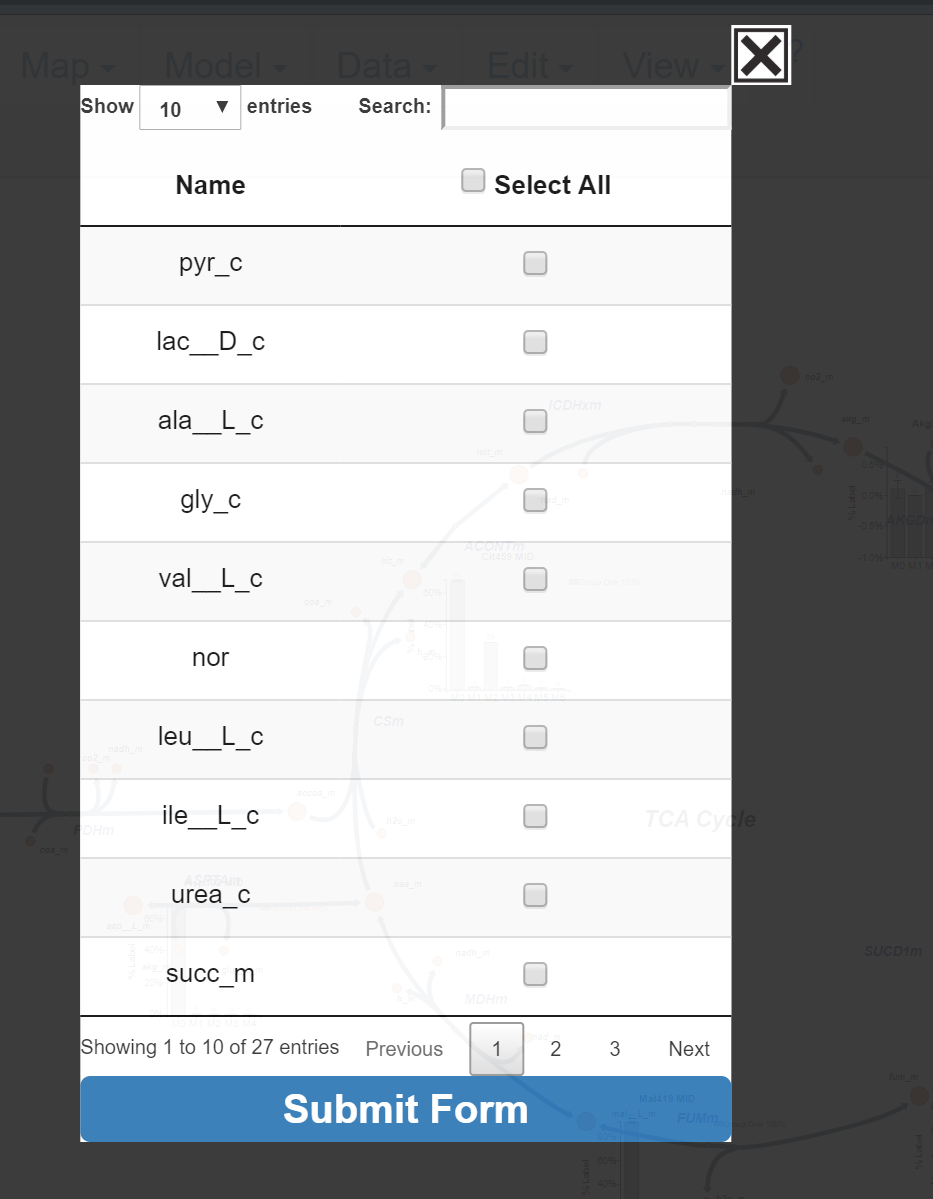
After the Metabolite to Display pop-up appears, the user may begin selecting metabolites whose data they would like to have displayed on the Escher Map.
5.1.1 Functionality of Metabolites Selection
This section of the guide will explain how to select metabolites and different options the user has to find and make selections.
5.1.1.1 Entries Displayed
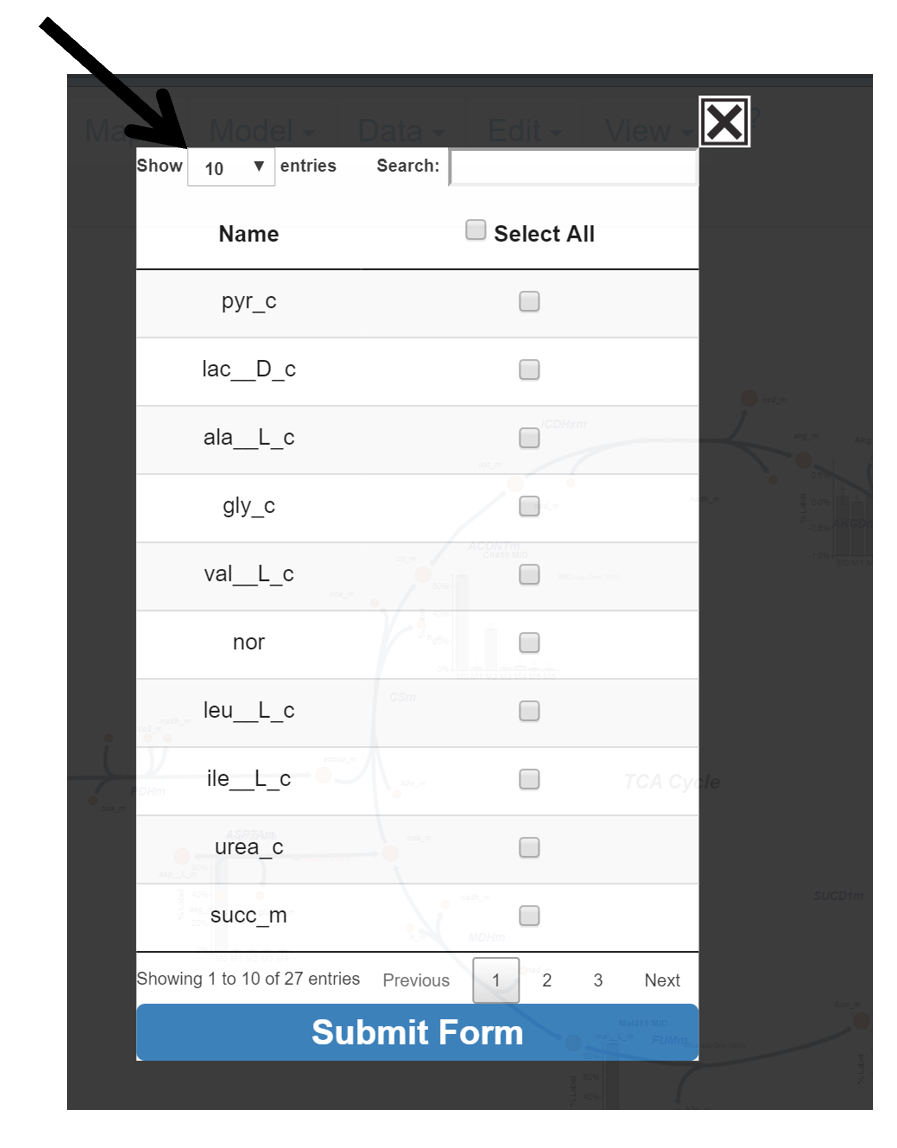
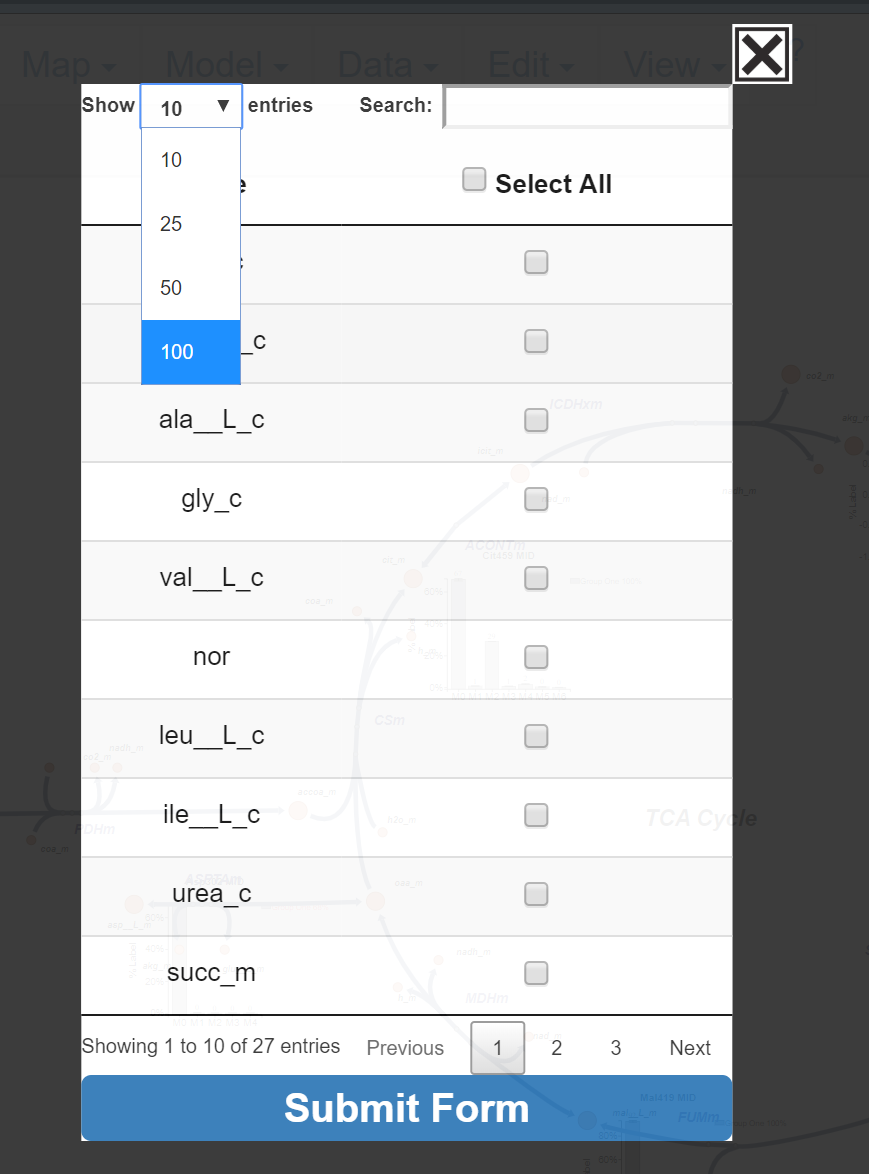
Change the number of entries displayed in the pop-up by clicking on the drop down menu in the top left and selecting a number.
After Click:
5.1.1.2 Search for Specific Metabolite
In the top right of the menu is a search bar. Click in the white box next to search and enter the name of the metabolite of interest. The table will automatically update search results with each entered character.
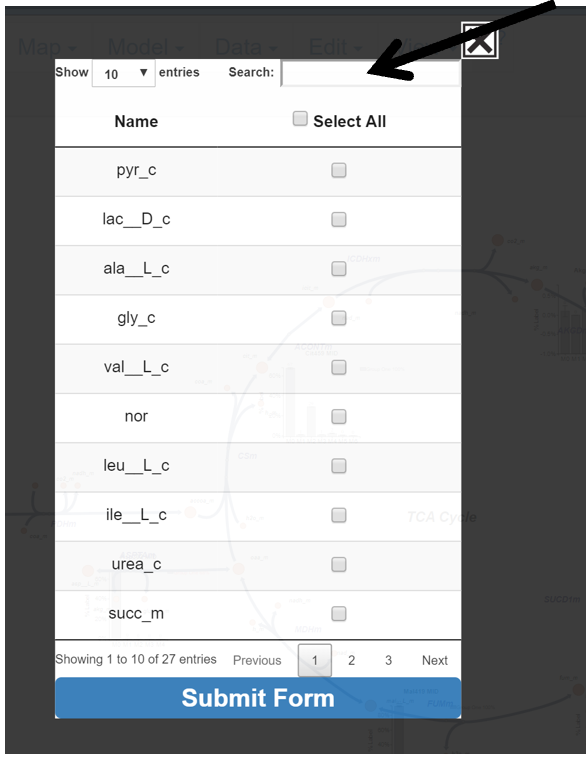
After First Letter Typed:

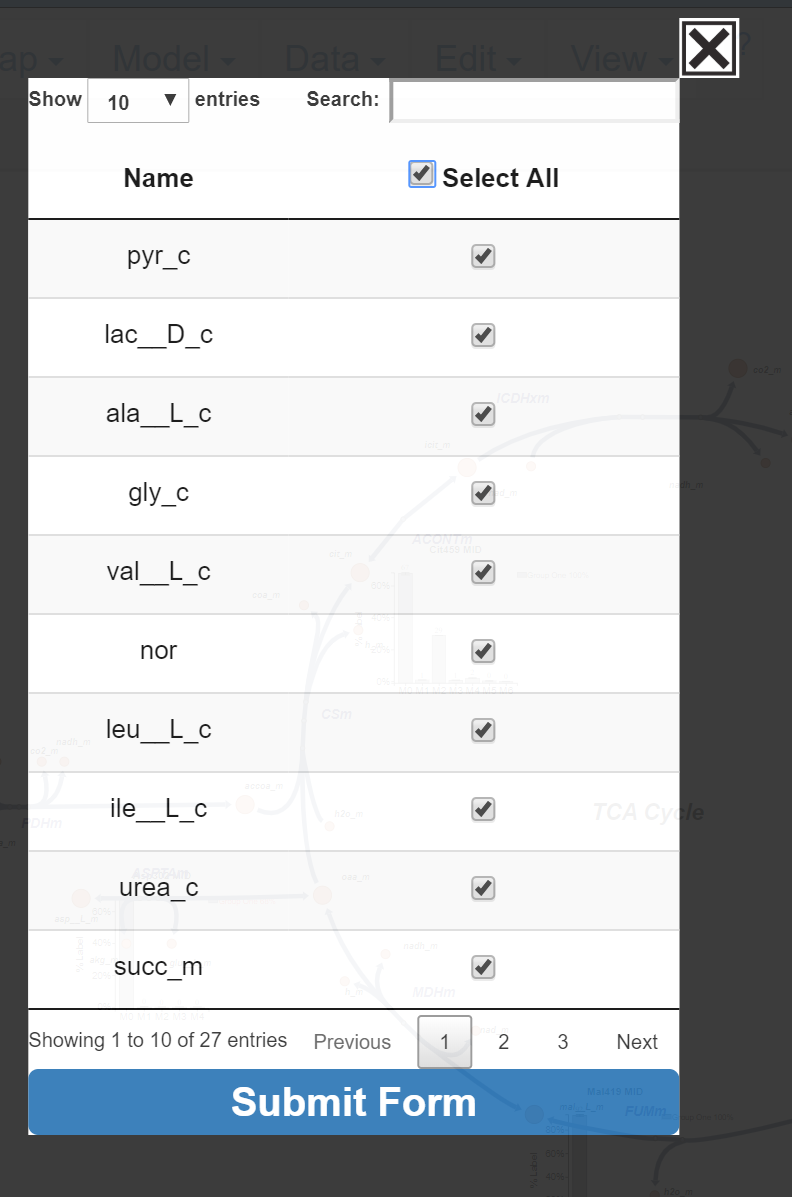
5.1.1.3 Select All
Click Select All to select all metabolites in the table.

After Click:
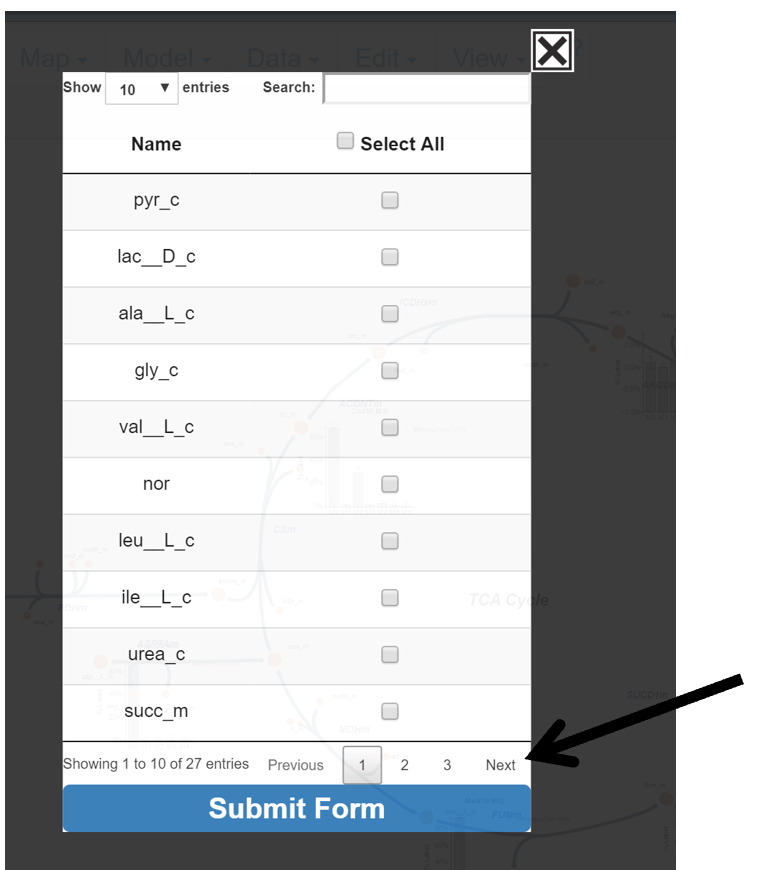
5.1.1.4 Moving Pages
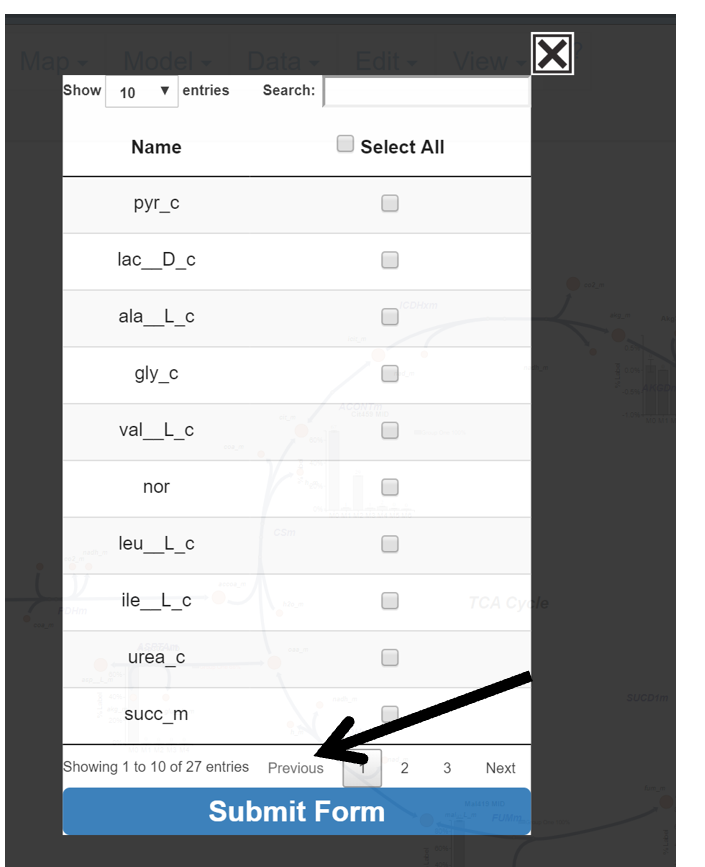
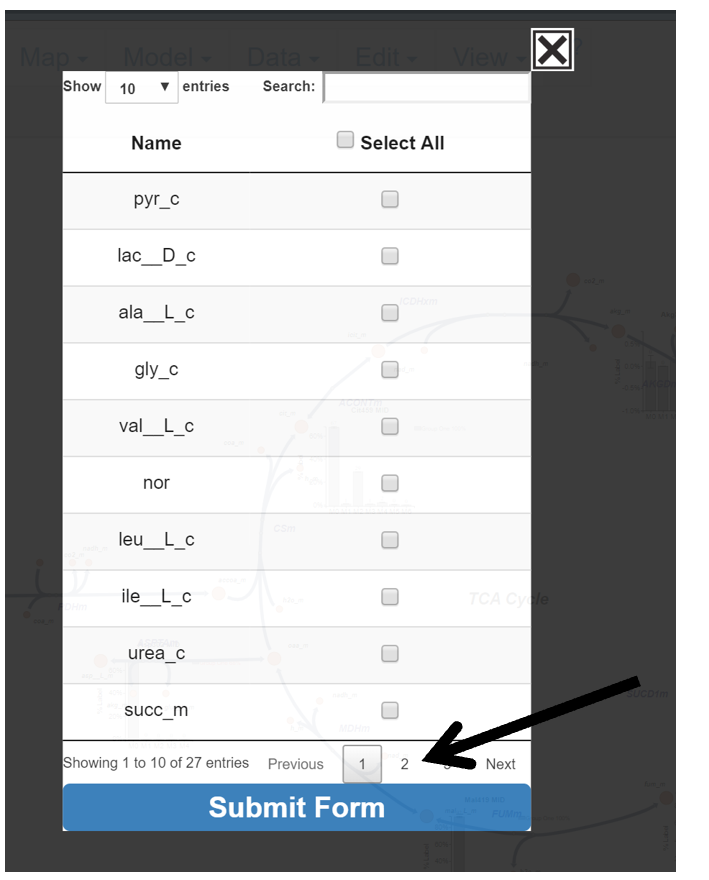
Move through pages by clicking Next, Previous, or the Page Number.
Next:
Previous:
Page Number:
5.1.1.5 Submit or Abort Changes
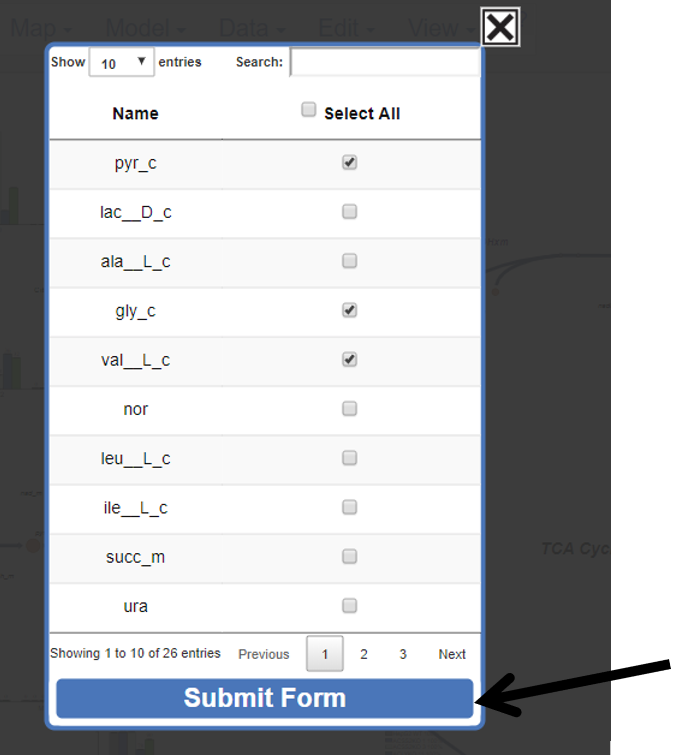
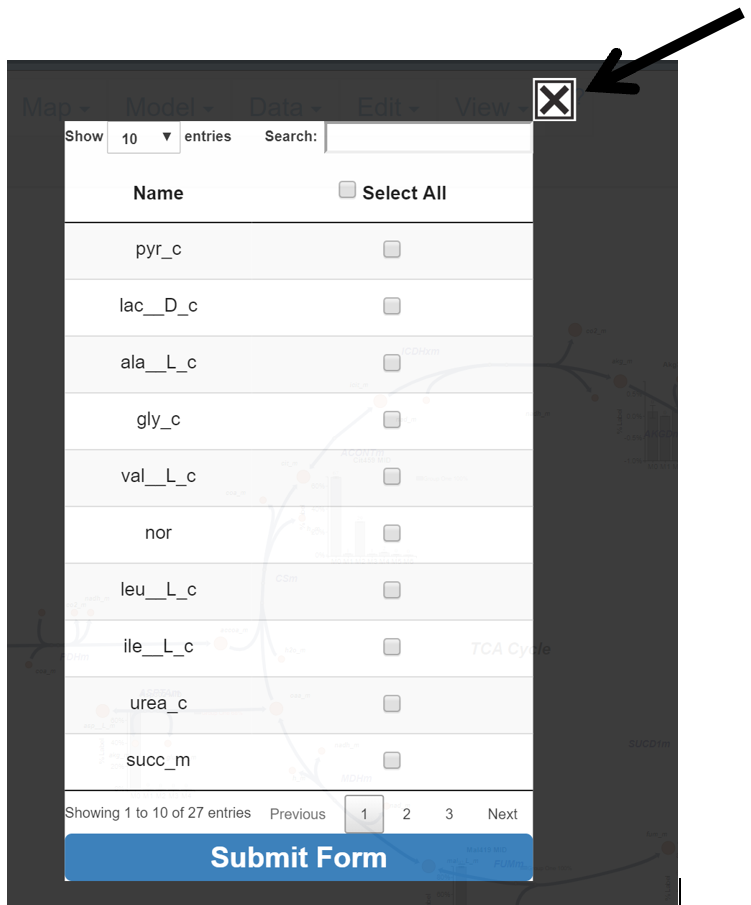
When finished with selections click Submit Form, to abandon changes click the X in the top right corner.
Submit Changes:
Before Submit:

Only selected metabolites will be displayed on the Escher Map after submitting the table.
After Submit:

Abort Changes:
5.2 Isotopologues to Display
This button allows the user to limit the isotopologue range that will be included in graphs generated for each metabolite/fragment. The majority instructions for how to interact with the table can be found above in the Metabolites to Display section of the guide. The main difference is how to select the individual metabolite’s isotopologue limit. Rather than checking a box, the user must click a dropdown menu and select an isotopolgue which will be used as the upper range for the displayed isotopologues. For example, selecting M3 results in M0, M1, M2, M3 isotopologue data being included for graph of the selected metabolite/fragment. The default selection for all metabolites/fragments is all isotopologues included in the uploaded data file. The isotopologue will be applied to ALL graph types of the selected metabolite.
NOTE: The selected isotopologue limit is important for Mole Percent Enrichment calculations and graphs, as only isotopologues through the selected isotopologue are included in the enrichment calculation, and the selected isotopologue limit is assumed to be the total number of carbons in the selected metabolite/fragment. For example if M4 is selected for a fragment, Escher-Trace assumes that there are 4 carbons in the metabolite and calculates the enrichment with this number.
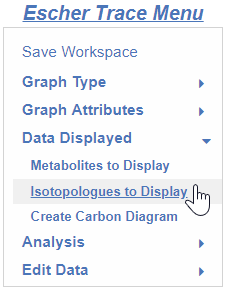
Click the Isotopologues to Display button to make the selection appear.
After click:
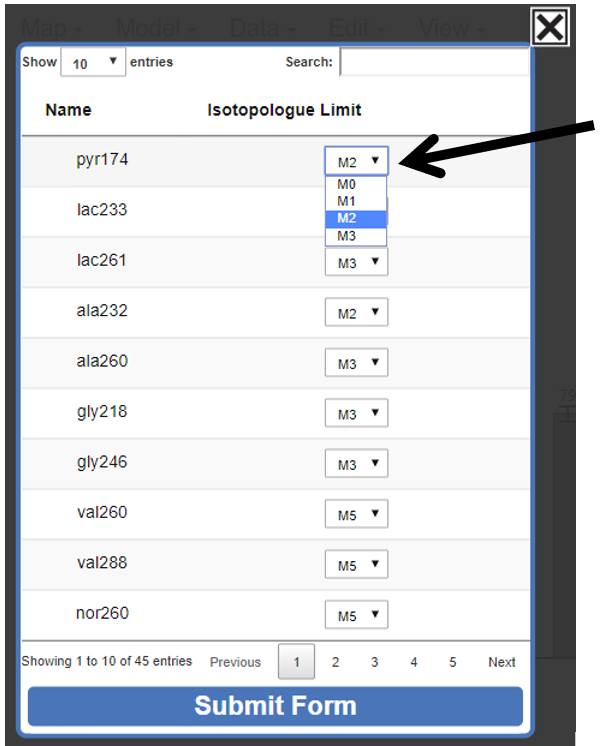
To submit changes click Submit Form.
Before Submit:

After Submit:

5.3 Create Carbon Diagram
This button allows the user to create carbon circle diagrams which will be displayed on the Escher Map. These diagrams are useful for depicting labeled vs unlabeled carbon positions. The circles in the diagram can be clicked to change their color indicating that the carbon is either labeled or unlabeled.
5.3.0 Make the Create Carbon Diagram Pop-up Appear
Click the Create Carbon Diagram button to make the selection appear.
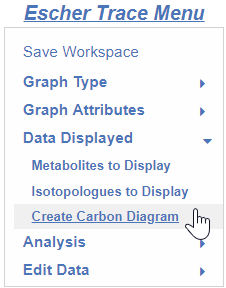
After click:

5.3.1 Building the Carbon Diagram
After the Create Carbon Diagram pop-up appears, the user may begin creating their carbon diagram using the arrow keys to add a circle in the direction corresponding to the arrow.

5.3.2 Removing Carbon Circles
To remove a circle from the diagram, first click Remove Carbon.
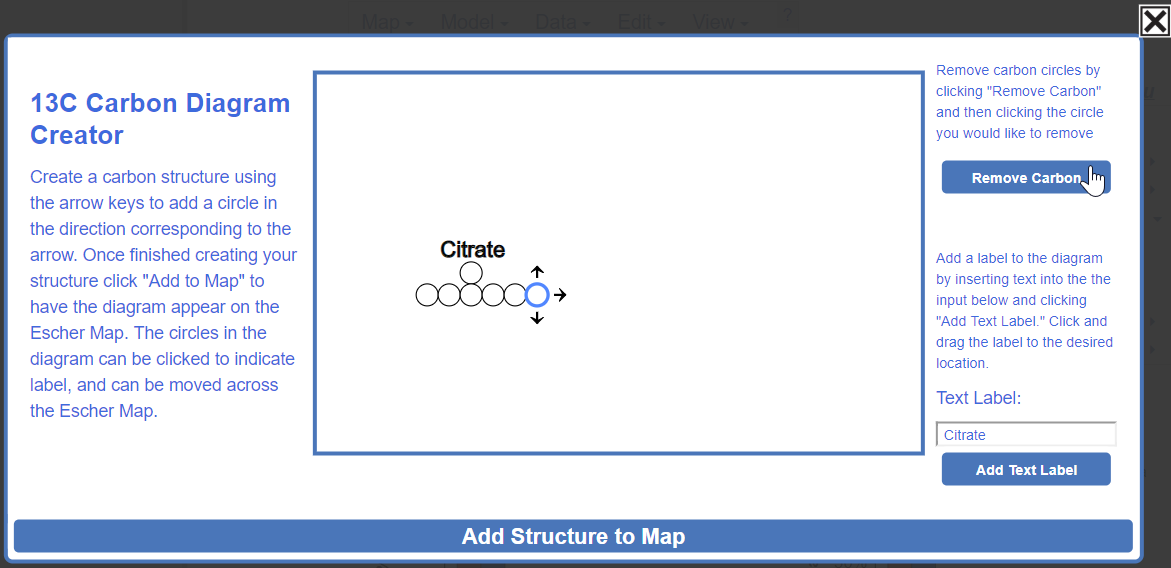
Hover over which circle you would like to remove. The circles will turn red as you hover over them.
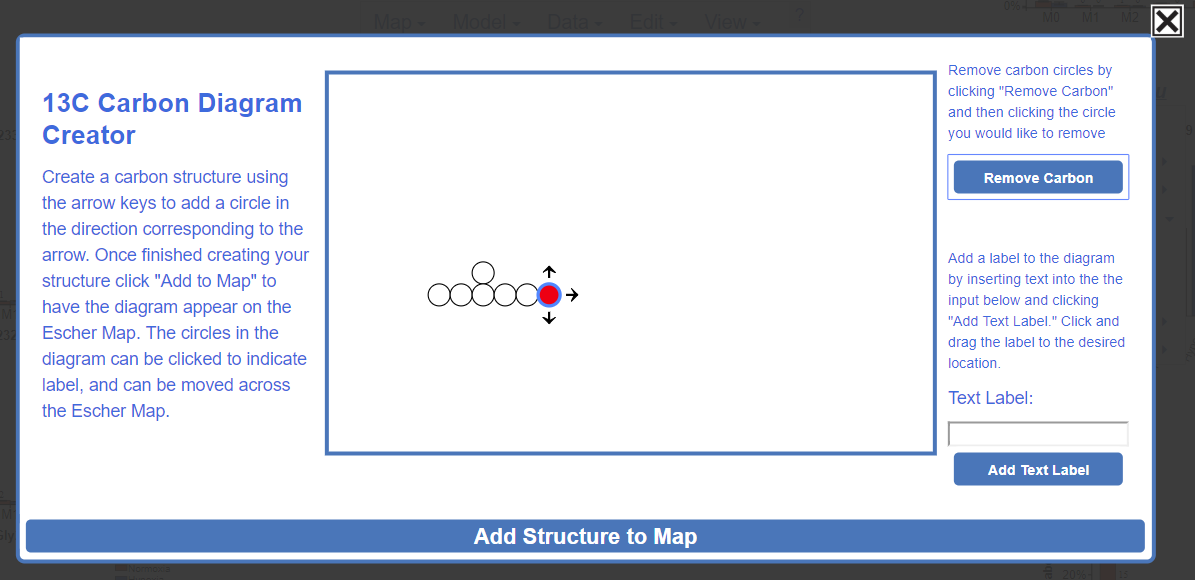
Click the red circle and it will be removed. All other circles positions will remain unaffected.

5.3.3 Adding Text Label
To add a text label to the diagram, enter the text you would like included in the label in the Text Label input.

Click Add Text Label to have the label included in the diagram. The label can be updated by reentering text in the Text Label input and reclick Add Text Label.

Click and drag the Text label to the desired location in the diagram.

5.3.4 Adding Carbon Diagram to Escher-Trace Workspace
Submit the Carbon diagram by clicking Add Structure to Map

After submission the diagram will appear in the top left corner of the Escher map:

The diagram can be moved anywhere in the Escher map by clicking and dragging it:

5.3.5 Carbon Diagram Options
After the carbon diagram has been added to the Escher-Trace workspace the diagrams can be clicked and dragged to move them around the map. Individual carbon circles can be clicked to change their color.
Before left click:

After left click:
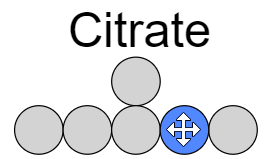
The circle can be clicked again to change the color back:
Carbon diagrams can be right clicked to access additional options in a dropdown menu:

5.3.5.1 Changing Carbon Diagram Color
To change the colors which indicate labeled and unlabeled carbons select Color in the dropdown menu.

After click:

You can then choose which color will indicate a labeled or unlabeled carbon by entering a HEX code into the color inputs, or selecting the color from the color pallete that appears when clicking on the color inputs.

To submit the changes, click Submit Colors

After submission:

5.3.5.2 Changing Size of Carbon Diagram
To change the size of the carbon diagram select Size in the dropdown menu.
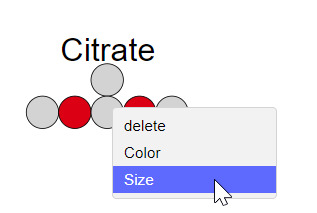
Change the diagram size by left clicking and dragging the gray circle slider underneath Size. Moving the slider to the right will make the diagram larger, moving left will make it smaller.
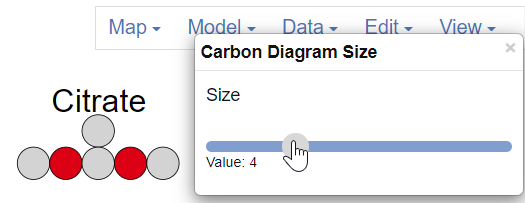
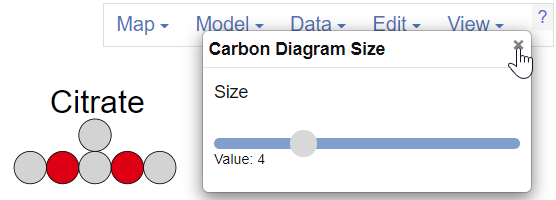
To close the Carbon Diagram Size popup, click the "x" in the top right corner of the popup.
5.3.5.3 Deleting Carbon Diagram
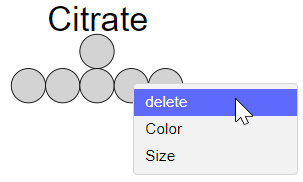
To delete a carbon diagram select "delete" in the dropdown menu.